Vertical Monitors for Code, Docs and Long Pages
The Dell UltraSharp U2723QE is our top pick for its full pivot stand, 4K sharpness and single cable USB-C docking. The Dell P2422H is the value choice for a straightforward 1080p portrait screen, and the LG 27UP850N-W suits anyone who wants 4K portrait plus strong colour coverage.
The Dell UltraSharp U2723QE leads this roundup because its stand pivots a full 90 degrees without fighting you, the IPS Black panel keeps contrast when viewed from an angle, and one USB-C cable handles video, data and laptop charging. The Dell P2422H is the value alternative for anyone who simply wants a 1080p screen standing on its end, while the LG 27UP850N-W is the pick if you want 4K portrait with wide colour coverage for editing work.
Choosing a vertical monitor is trickier than it looks because most listings never say whether the included stand pivots at all, and a screen that only rotates on an aftermarket arm is a different purchase. Portrait orientation also exposes weak panels, since you are now looking across the wide axis of the panel rather than down it, and cheap TN screens shift colour badly. We compared pivot range, stand height travel, panel technology, resolution and how text scales in portrait, port selection and VESA compatibility, then weighed those against what owners report about stand wobble and how easily each screen rotates in a crowded desk setup.
The shortlist, ranked

Dell UltraSharp U2723QE 27-Inch 4K Monitor
This is the monitor most people picture when they think about a proper portrait setup, with a stand that pivots smoothly through 90 degrees and enough height travel to keep the top of the screen below eye level once rotated. The IPS Black panel holds contrast far better off axis than standard IPS, which matters when a tall screen puts the edges further from your eyeline. Single cable USB-C docking with power delivery keeps the desk clean.
Pros
- Smooth full pivot with generous height adjustment
- IPS Black contrast holds up in portrait
- USB-C docking replaces a separate hub
Cons
- Costs more than plain 4K panels without docking
- Text needs scaling adjustment at 27 inch 4K

LG 27UP850N-W 27-Inch UHD Monitor
LG covers a wide slice of the DCI-P3 gamut here and ships a stand that both pivots and raises, which is the combination editors need when a tall reference column sits beside a landscape timeline. USB-C carries video and charges a laptop at a useful wattage. The stand base is broad, so measure the desk before committing to a dual screen arrangement.
Pros
- Strong colour coverage for photo and design work
- Pivot and height adjustment both included
- USB-C charging suits laptop first desks
Cons
- Large stand base eats desk space
- On screen menu controls are fiddly

Dell P2422H 24-Inch Monitor
If the goal is simply a second screen standing on its end for chat windows, terminals or documents, this is the sensible buy. The stand pivots, tilts, swivels and raises, which is unusual at this level, and the thin bezels help when it sits beside a larger primary display. Resolution is 1080p, so it is a companion screen rather than a detail panel.
Pros
- Full ergonomic stand at a modest outlay
- Thin bezels suit multi monitor rows
- Built in USB hub for peripherals
Cons
- 1080p looks coarse for detailed work
- No USB-C video input

ASUS ProArt Display PA278CV 27-Inch Monitor
A 27 inch 1440p panel is arguably the sweet spot for portrait code, since it shows plenty of lines without forcing display scaling that blurs older applications. ASUS includes a pivoting stand, factory colour calibration and USB-C with modest power delivery. The finish is plain and the speakers are an afterthought, but the panel and stand are the point.
Pros
- 1440p shows many code lines without scaling headaches
- Factory calibration out of the box
- USB-C plus a usable USB hub
Cons
- USB-C power delivery is limited for larger laptops
- Built in speakers are weak

BenQ PD2705Q 27-Inch Designer Monitor
BenQ aims this at designers who bounce between drawing, layout and reference material, and the pivoting stand makes the long reference column easy to set up. Colour modes for darkroom and CAD work are genuinely useful rather than marketing filler. Owners report the stand pivot is stiffer than the Dell equivalents, so rotating it daily takes a firmer hand.
Pros
- Useful preset colour modes for design tasks
- USB-C docking with decent charging
- Sturdy chassis with minimal wobble
Cons
- Pivot action is stiff compared with rivals
- Menu system takes time to learn
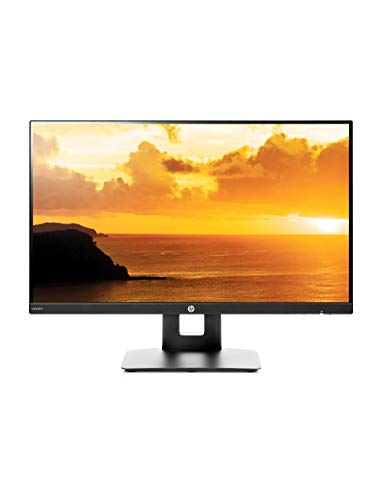
HP VH240a 23.8-Inch Monitor
This has been the default cheap portrait monitor for years because HP fitted a pivoting stand to an otherwise basic 1080p IPS panel. It does the job for chat, logs, social feeds or a document column beside a main screen. Inputs are limited to HDMI and VGA, so check what your machine actually outputs before ordering.
Pros
- Cheapest reliable route to a rotating screen
- IPS panel keeps colour reasonable in portrait
- Light enough to rotate one handed
Cons
- No DisplayPort or USB-C input
- Stand height range is short
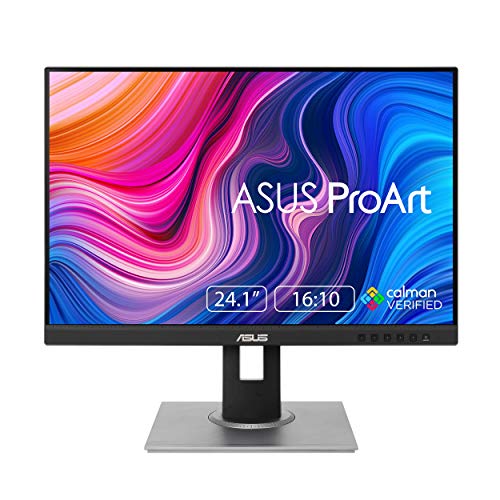
ASUS ProArt Display PA248QV 24.1-Inch Monitor
The 16:10 aspect ratio is the quiet advantage here, because rotated into portrait it gives a slightly wider column than a 16:9 panel, which suits full page documents and long web layouts. Resolution is 1920 x 1200 and the stand pivots as standard. It is not a high resolution panel, so treat it as a reading and reference screen rather than a photo display.
Pros
- 16:10 gives a wider portrait column for documents
- Full ergonomic stand included
- Calibrated colour modes for the money
Cons
- Resolution is modest for the screen size
- No USB-C connectivity
How to pick the right one
Check the stand pivots before anything else Plenty of monitor listings show a rotated product shot without the stand actually supporting rotation. The specification to look for is pivot, listed alongside tilt, swivel and height adjustment. If a screen only offers tilt, you will need a VESA arm or stand to rotate it, which adds cost and desk clamping requirements. Confirm the VESA pattern too, usually 100 x 100 millimetres on desktop monitors, before assuming an arm will fit.
Panel type matters more in portrait Rotating a screen puts the long axis vertical, so your eyes now sit at a wider angle relative to the top and bottom edges. IPS panels hold colour and brightness across those angles, while TN panels wash out or darken noticeably. VA panels sit in between and can show a vertical brightness gradient once rotated. For portrait use, treat IPS as the practical minimum.
Resolution and scaling in portrait A 27 inch 4K panel rotated to portrait gives beautiful text but usually needs display scaling, and some older desktop applications still render blurred at non integer scaling. A 27 inch 1440p panel avoids that argument entirely and still fits a lot of code on screen. At 24 inch, 1080p portrait is comfortable for chat and documents but coarse for detailed design work. Match the resolution to what will actually live on that screen.
Height, cables and the mounting reality Once rotated, a 27 inch screen is roughly 60 centimetres tall, which pushes the top edge above comfortable eye level on many desks. Look for a stand with real height travel so you can drop the panel down. Cable routing changes too, since ports that pointed down now point sideways, and stiff DisplayPort cables can foul the stand or press against a wall. Angled or flexible cables solve this cheaply.
Compared at a glance
| # | Model | Size and resolution | Best for | Score | Price |
|---|---|---|---|---|---|
| 1 | Dell UltraSharp U2723QE 27-Inch 4K Monitor | 27 inch, 3840 x 2160 | Best overall | 9.4 | Check price |
| 2 | LG 27UP850N-W 27-Inch UHD Monitor | 27 inch, 3840 x 2160 | Best for colour work | 9.2 | Check price |
| 3 | Dell P2422H 24-Inch Monitor | 24 inch, 1920 x 1080 | Best value | 9.0 | Check price |
| 4 | ASUS ProArt Display PA278CV 27-Inch Monitor | 27 inch, 2560 x 1440 | Best for developers | 8.8 | Check price |
| 5 | BenQ PD2705Q 27-Inch Designer Monitor | 27 inch, 2560 x 1440 | Best for mixed design work | 8.6 | Check price |
| 6 | HP VH240a 23.8-Inch Monitor | 23.8 inch, 1920 x 1080 | Best budget | 8.3 | Check price |
| 7 | ASUS ProArt Display PA248QV 24.1-Inch Monitor | 24.1 inch, 1920 x 1200 | Best for tall documents | 8.0 | Check price |
Questions worth asking
Do all monitors rotate to portrait mode?
No. Rotation depends on the stand supporting a pivot function, which many budget monitors leave out. Look for pivot listed in the ergonomics section of the specification, or plan to buy a VESA arm that provides the rotation instead.
How do I turn on portrait mode in Windows?
Open Display settings, select the monitor, then change Display orientation to Portrait or Portrait flipped depending on which way you rotated the panel. Graphics driver control panels from Nvidia, AMD and Intel offer the same setting if you prefer.
Is a vertical monitor better for programming?
Many developers prefer one, because more lines of code fit on screen without scrolling and long stack traces or log files read in one view. It works best as a secondary screen beside a landscape primary rather than as your only display.
What size monitor works best vertically?
24 and 27 inch panels are the practical range. Larger screens become uncomfortably tall once rotated, forcing you to look up and down constantly. A 24 inch panel keeps the whole column within easy eye movement, while 27 inch gives more room if your desk allows a lower mounting position.
Do I need a monitor arm for portrait use?
Only if the monitor stand does not pivot, or if you want the screen lower than the stand allows. An arm also frees desk space and makes it easier to rotate between portrait and landscape depending on the task.
Does portrait orientation affect gaming?
Games generally assume a landscape aspect ratio and will letterbox or stretch awkwardly in portrait. Keep a landscape primary screen for gaming and use the rotated panel for chat, guides or streaming tools.
Will text look worse in portrait?
Subpixel rendering assumes a horizontal RGB layout, so rotating the panel can make text edges look slightly different. On modern IPS panels at 1440p or higher the effect is minor. At 1080p on a lower quality panel it is more noticeable.
Can I use a vertical monitor with a laptop?
Yes, and a USB-C monitor makes it simplest because one cable carries video, data and charging. Check that your laptop port supports DisplayPort Alt Mode, since some USB-C ports handle data and power only.
Final word
For most desks the Dell UltraSharp U2723QE is the one to buy, because the pivot works smoothly, the IPS Black panel stays consistent across the tall axis and USB-C docking removes a pile of cables. If the goal is just a cheap second screen standing on its end, the Dell P2422H does that job well without wasted resolution. Colour focused users should stretch to the LG 27UP850N-W for its wider gamut and equally capable stand.


