How to Choose the Right 4K Monitor for Your Desk
Dell UltraSharp U2723QE leads for desk work, with an IPS Black panel and single cable USB-C docking. Gigabyte M28U is the gaming pick at 144Hz. LG 27UP850-W is the balanced all rounder when one screen does both.
Dell UltraSharp U2723QE is the clearest choice for desk work. Gigabyte M28U handles high refresh gaming. LG 27UP850-W is the pick when one screen has to do both jobs well.
Resolution is the one thing every 4K model shares, so the real decision turns on panel type, refresh rate, colour coverage, and whether a single cable carries video, data, and laptop charging. Marketing figures like one millisecond response rarely reflect daily use. We compared published panel specs and port layouts alongside consistent owner reports on text clarity, uniformity, and scaling.
The best picks, ranked

Dell UltraSharp U2723QE
An IPS Black panel roughly doubles the contrast of conventional IPS, so dark interfaces and photos look far less washed out. Its real edge is the built in dock. One USB-C cable carries video, feeds 90 watts to a laptop, and drives a USB hub plus ethernet. Owners call it the monitor that tidies a whole desk.
Pros
- IPS Black contrast is a visible step up
- One cable for video, data, ethernet, and charging
- Excellent factory colour accuracy
Cons
- 60Hz rules it out for serious gaming
- Sits at the top of this group on cost

Gigabyte M28U
4K meets a 144Hz refresh and HDMI 2.1, so current consoles run 4K at 120Hz while a PC gets full refresh over DisplayPort. A built in KVM switch lets one keyboard and mouse serve a desktop and a laptop. The stand is the weak point, and HDR is entry level rather than transformative.
Pros
- HDMI 2.1 drives 4K at 120Hz on consoles
- KVM switch handles two machines
- Strong value for high refresh 4K
Cons
- Stand offers limited adjustment
- HDR performance is basic

LG 27UP850-W UltraFine
Wide DCI-P3 coverage suits photo work, USB-C delivers 90 watts to a laptop, and adaptive sync handles casual 60Hz gaming. The ergonomic stand tilts, swivels, pivots, and raises properly, which stays rarer than it should be. This is the sensible pick when the monitor plays several roles.
Pros
- Fully adjustable ergonomic stand
- Wide colour coverage for photo editing
- USB-C charging simplifies laptop use
Cons
- 60Hz limits gaming smoothness
- Built in speakers are weak
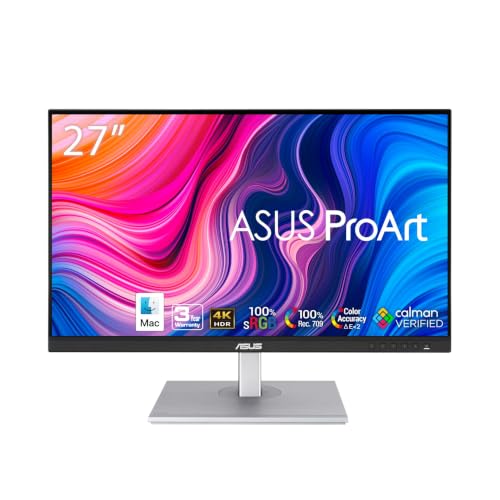
ASUS ProArt Display PA279CV
It arrives with a factory calibration report and covers sRGB closely, which matters more for print and web than a wide gamut you must rein in. Hardware presets cover different colour spaces, and an on screen ruler and grid help layout work. It is a working tool, and the design shows it.
Pros
- Factory calibrated with a supplied report
- Accurate sRGB straight out of the box
- Useful on screen alignment tools
Cons
- 65 watt charging is short for larger laptops
- Contrast is ordinary for the class
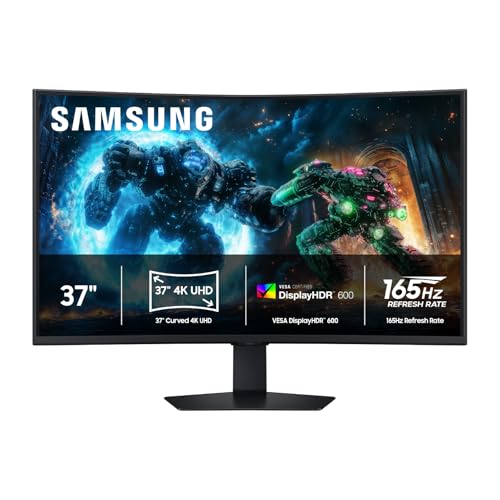
Samsung Odyssey Neo G7 S32BG75
A mini LED backlight with local dimming zones sits behind a curved VA panel, producing the deepest blacks and most convincing HDR highlights here. A 165Hz refresh makes it a genuine gaming display too. The curve and aggressive dimming divide opinion for desktop work, where a bright cursor on black can bloom.
Pros
- Outstanding contrast and HDR highlights
- 165Hz refresh with HDMI 2.1
- 32 inch panel eases 4K scaling
Cons
- Local dimming blooms around bright objects
- Curved VA divides opinion for text
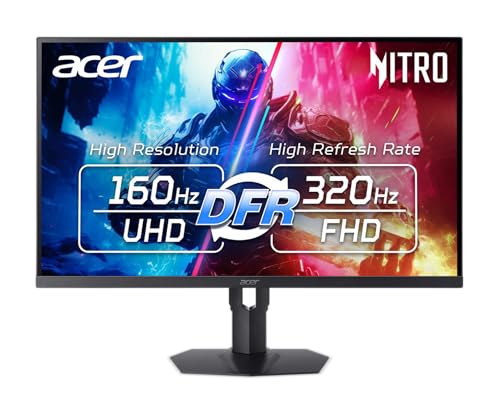
Acer Nitro XV282K KV
Two HDMI 2.1 ports feed a 144Hz 4K panel, exactly the setup for a PlayStation and Xbox sharing a desk with a PC. Response is quick and adaptive sync works across sources. Out of box colour needs adjustment, and the plastic body shows where the money went.
Pros
- Two HDMI 2.1 ports for multiple consoles
- Fast response for competitive play
- Height adjustable stand included
Cons
- Needs calibration for accurate colour
- Plastic build feels basic

Dell S2722QC
This is the affordable way into 4K with USB-C charging, the combination most laptop users actually want. It delivers 65 watts, keeps a clean bezel, and ships with a height adjustable stand. Contrast and colour coverage sit a step below the UltraSharp line, yet documents, browsing, and video look fine.
Pros
- USB-C laptop charging at a low price
- Height adjustable stand included
- Clean thin bezel design
Cons
- No DisplayPort input
- Contrast and gamut trail premium models
How to choose
Screen size and scaling decide how usable 4K feels At 27 inches, 4K packs roughly 163 pixels per inch, too dense to read at native scaling, so you run the OS near 150 percent and gain sharpness rather than space. At 32 inches density drops to about 138 ppi, which many run at 125 percent for both sharpness and room. Want more workspace over sharper text? A 32 inch panel is the better call.
Panel type is the biggest visual difference IPS gives accurate colour and wide viewing angles but historically weak contrast, which IPS Black partly fixes. VA offers deeper blacks with slower transitions that can smear in fast motion. Mini LED adds local dimming zones on top for real HDR, at the cost of occasional blooming. Choose IPS for text and colour, VA or mini LED for dark room contrast.
Refresh rate, HDMI 2.1, and what your hardware can drive Driving 4K at 144Hz needs a capable graphics card and the right cable, since DisplayPort 1.4 leans on compression while HDMI 2.1 carries it natively. Current consoles output 4K at 120Hz only over HDMI 2.1, so HDMI 2.0 ports cap them at 60Hz whatever the panel does. Check the port version, not the shape, because they look identical.
USB-C docking is worth more than the spec sheet shows A monitor with USB-C power delivery replaces a separate dock, a charger, and a tangle of cables with one connection. Check the wattage against your laptop, since 65 watts suits an ultrabook but a larger machine under load slowly discharges. Confirm whether the ethernet port and USB hub stay active when the laptop sleeps.
Side by side
| # | Model | Panel | Best for | Score | Price |
|---|---|---|---|---|---|
| 1 | Dell UltraSharp U2723QE | 27 inch IPS Black, 3840 by 2160 | Best overall | 9.4 | Check price |
| 2 | Gigabyte M28U | 28 inch IPS, 3840 by 2160 | Best for gaming | 9.2 | Check price |
| 3 | LG 27UP850-W UltraFine | 27 inch IPS, 3840 by 2160 | Best all rounder | 9.0 | Check price |
| 4 | ASUS ProArt Display PA279CV | 27 inch IPS, 3840 by 2160 | Best for colour work | 8.8 | Check price |
| 5 | Samsung Odyssey Neo G7 S32BG75 | 32 inch curved VA with mini LED, 3840 by 2160 | Best for HDR contrast | 8.6 | Check price |
| 6 | Acer Nitro XV282K KV | 28 inch IPS, 3840 by 2160 | Best for console gaming | 8.3 | Check price |
| 7 | Dell S2722QC | 27 inch IPS, 3840 by 2160 | Best budget | 8.0 | Check price |
Frequently asked questions
Is 27 inches too small for a 4K monitor?
Not at all, but you will need display scaling, since native text is tiny at that density. What you gain is much sharper text rather than more desktop space. If extra workspace is the goal, 32 inches is the better size.
Do I need a powerful graphics card for a 4K monitor?
For desktop work, browsing, and video, integrated graphics on any modern machine handles 4K at 60Hz. Gaming at 4K is another matter and needs a strong dedicated card, especially to use a 144Hz panel.
What is the difference between IPS and IPS Black?
IPS Black is a newer variant that roughly doubles the contrast of standard IPS, so dark areas look genuinely dark rather than grey. Colour accuracy and viewing angles stay similar. It is the most meaningful recent gain for productivity panels.
Will a 4K monitor work with my games console?
Yes, though 4K at 120Hz needs an HDMI 2.1 port on the monitor. HDMI 2.0 limits you to 4K at 60Hz. Check the spec carefully, since both versions use the same connector.
Is HDR on a monitor actually worth having?
Only above a certain level. Entry level HDR on an ordinary backlight makes little visible difference. Mini LED with many dimming zones does produce a real effect. If HDR matters, look at the backlight rather than the badge.
How much USB-C power delivery do I need?
65 watts suits most thin and light laptops. 90 watts or more is safer for larger machines or anything with dedicated graphics, since a laptop drawing more than the monitor supplies slowly loses charge under load.
Should I get a curved 4K monitor?
Curves suit large panels and immersive gaming but can distort straight lines in design work, which bothers some people. At 27 inches the benefit is marginal. At 32 inches and above it grows more noticeable and useful.
Does the cable I use matter for 4K?
It does. Use a certified DisplayPort 1.4 or HDMI 2.1 cable rated for the bandwidth. For USB-C, confirm the cable carries both video and your required power wattage. Many bundled USB-C cables carry power but no video at all.
Dell U2723QE vs LG 27UP850-W, which should I pick?
The Dell wins on IPS Black contrast and its dock with ethernet. The LG counters with a fully adjustable stand at a lower cost. Choose the Dell for a tidy work desk, the LG for value and ergonomics.
Final word
Dell UltraSharp U2723QE is the best 4K monitor for anyone working all day, since IPS Black contrast and single cable docking change how the desk feels, not just how the screen looks. Gamers should take the Gigabyte M28U for its 144Hz panel and HDMI 2.1 ports. LG 27UP850-W is the right compromise when one screen covers both.
You might also need

How to Choose a Photo Printer for Sharp Prints at Home

How to Choose a Pro Controller for Serious Gaming
