Which Drawing Tablet Fits Your Art Style and Setup?
The Wacom Intuos Pro Medium is our top drawing tablet overall for its pen feel, build quality and driver reliability. The Huion Kamvas 13 is the best value display tablet for artists who want to draw directly on screen, while the Wacom Intuos S is the easiest starting point.
The right drawing tablet depends mostly on one decision, which is whether you draw looking at a monitor or looking at your hand. The Wacom Intuos Pro Medium is the best screenless tablet, the Huion Kamvas 13 is the best value display tablet, and the Wacom Intuos S is the least intimidating way to start. All seven below are current models with active driver support.
Choosing is tricky because specifications like 8192 pressure levels are now universal and tell you almost nothing about how a pen actually feels. We compared pen technology, tilt recognition, initial activation force, active area size, screen colour coverage where relevant and driver behaviour across operating systems, then weighed what owners report about parallax, cable clutter and long term nib wear.
The shortlist, ranked

Wacom Intuos Pro Medium PTH-660
The Intuos Pro Medium is still the reference screenless tablet because the Pro Pen 2 tracks with almost no lag and starts marking with the lightest touch. A large active area, eight express keys and a touch ring keep your other hand off the keyboard. Owners report the drivers are the most dependable part of the package across long term use.
Pros
- Best pen tracking and low activation force
- Wireless option removes cable clutter
- Reliable drivers on both Windows and macOS
Cons
- Costs more than rival screenless tablets
- Replacement pens are expensive

Huion Kamvas 13
The Kamvas 13 puts a laminated full HD screen under the pen so your hand and cursor line up, which shortens the learning curve dramatically for anyone coming from paper. Laminated glass keeps parallax low and the matte surface adds enough friction to feel natural. It needs a three in one cable or a USB C connection to a supported machine.
Pros
- Low parallax laminated display
- Good colour coverage for the money
- Comfortable battery free pen
Cons
- Cable setup adds desk clutter
- Screen warms during long sessions

Wacom Intuos S CTL-4100
The Intuos S is small, light and cheap enough to find out whether digital drawing suits you before committing further. It uses a battery free pen with 4096 pressure levels, which is plenty for sketching and photo retouching. Its compact active area suits laptops and small desks, though detailed illustration eventually benefits from more room.
Pros
- Affordable entry to Wacom quality
- Very portable for laptop work
- Simple setup with reliable drivers
Cons
- Small active area limits long strokes
- No tilt support

XPPen Artist 12 (2nd Gen)
At 11.9 inches this XPPen display is small enough to travel with and can run from a single USB C cable on supported laptops, which cuts the usual cable tangle. Colour coverage is strong for the class and the pen supports tilt for shading. The compact canvas suits illustration and note taking more than large scale painting.
Pros
- Single cable connection on many laptops
- Strong colour coverage for the size
- Genuinely portable pen display
Cons
- Small drawing area for detailed work
- No express keys on the slim frame

Wacom One 13 Touch
The Wacom One 13 Touch adds multi touch gestures to an entry level pen display, so you can pinch to zoom and rotate the canvas the way you would on a tablet. It connects to computers and to selected Android devices, which widens where you can work. Colour and pressure specifications sit below the Intuos Pro line, as the price implies.
Pros
- Touch gestures for zoom and rotate
- Works with selected Android devices
- Wacom driver support
Cons
- Lower pressure levels than rivals
- Colour coverage trails the Huion Kamvas

XPPen Deco Pro MW
The Deco Pro MW pairs over Bluetooth and adds a mechanical roller plus a virtual wheel for zooming and brush sizing, which keeps your left hand off the keyboard. The aluminium body is thin enough to slide into a laptop bag. It is the strongest value alternative for anyone who wants Intuos Pro style controls without the Wacom outlay.
Pros
- Large active area with wireless connection
- Roller and wheel shortcuts are genuinely useful
- Slim aluminium build travels well
Cons
- Driver updates are less polished than Wacom
- Wide format takes desk space
Huion Inspiroy H610X
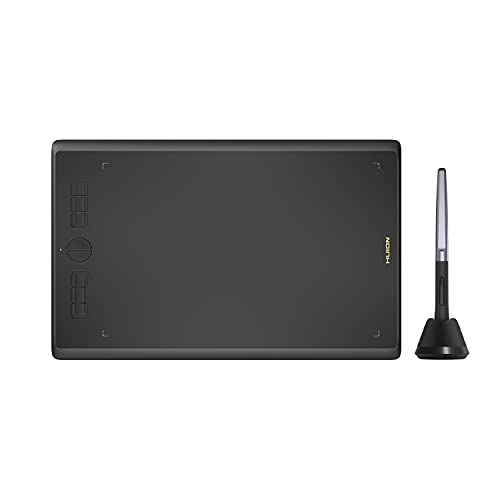
The H610X offers a large active area at a price close to the smallest name brand tablets, which makes it a sensible first purchase for students. The pen is battery free with tilt support and the surface texture is closer to paper than glossy rivals. Build quality is plainer than the premium models but the drawing experience is solid.
Pros
- Large drawing area for the outlay
- Paper like surface texture
- Tilt support at an entry level price
Cons
- Plastic build feels basic
- Wired only connection
How to pick the right one
Screen or screenless is the first decision Screenless tablets ask you to look at the monitor while your hand moves elsewhere, which feels strange for a few days and then becomes second nature, and they are cheaper, lighter and cooler running. Pen displays put the cursor under the nib, which suits artists coming from traditional media. Neither is better in absolute terms, so choose the one that matches how you think while drawing.
Pressure levels are no longer a differentiator Almost every tablet here quotes 8192 levels, and the human hand cannot distinguish anywhere near that many. What actually matters is initial activation force, meaning how lightly the pen starts marking, plus tilt recognition and how smoothly the line tapers. Those qualities show up in reviews and pen feel rather than in the spec sheet.
Check size against your desk and your style A medium screenless tablet with a roughly nine inch active area suits full arm strokes and long lines, while a small tablet keeps your wrist compact and travels easily. For pen displays, 13 inch models balance portability against canvas room, and larger displays need a stand and dedicated desk space. Map the active area to your monitor before deciding you need more.
Drivers and software support matter over time Tablet hardware rarely fails, but a driver that conflicts after an operating system update can stop you working. Wacom has the longest track record here, while Huion and XPPen have improved considerably and offer far more hardware per unit of spend. Check that your main application, whether that is Photoshop, Clip Studio Paint or Krita, is explicitly supported.
Compared at a glance
| # | Model | Type | Best for | Score | Price |
|---|---|---|---|---|---|
| 1 | Wacom Intuos Pro Medium PTH-660 | Screenless pen tablet | Best overall | 9.4 | Check price |
| 2 | Huion Kamvas 13 | Pen display | Best value display tablet | 9.2 | Check price |
| 3 | Wacom Intuos S CTL-4100 | Screenless pen tablet | Best for beginners | 9.0 | Check price |
| 4 | XPPen Artist 12 (2nd Gen) | Pen display | Best compact pen display | 8.8 | Check price |
| 5 | Wacom One 13 Touch | Pen display with touch | Best beginner pen display | 8.5 | Check price |
| 6 | XPPen Deco Pro MW | Screenless pen tablet | Best wireless screenless tablet | 8.2 | Check price |
| 7 | Huion Inspiroy H610X | Screenless pen tablet | Best budget option | 8.0 | Check price |
Common questions
Is a screenless tablet harder to learn?
It takes most people a few days to adapt to looking at the monitor while drawing on the surface below. After that the hand eye separation becomes automatic, and many professional illustrators prefer it for posture and comfort.
Do I need 8192 pressure levels?
No. Anything above a few thousand levels is beyond what a hand can control, so pay more attention to activation force, tilt support and pen ergonomics than the headline number.
Which drawing tablet is best for beginners?
The Wacom Intuos S is the lowest risk starting point for screenless drawing, and the Wacom One 13 Touch or Huion Kamvas 13 suit beginners who want to draw directly on a screen.
Can these tablets connect to a phone or tablet?
Some can. The Wacom One 13 Touch and several Huion models support selected Android devices, though feature support varies by phone. Check the manufacturer compatibility list for your specific device.
What is parallax and does it matter?
Parallax is the gap between the pen tip and the cursor on a pen display, caused by the thickness of glass over the panel. Laminated screens such as the Huion Kamvas 13 minimise it, which makes precise line work easier.
Do the pens need charging?
All the pens listed here are battery free and draw power from the tablet through electromagnetic resonance. That means no charging, no batteries and a lighter pen in the hand.
How often do nibs need replacing?
Nibs wear at very different rates depending on pressure and surface texture, ranging from weeks to many months. Every tablet here ships with spare nibs and replacements are inexpensive.
Will a drawing tablet work with Photoshop and Procreate?
Photoshop, Clip Studio Paint, Krita and Illustrator all work with these tablets on Windows and macOS. Procreate is iPad only, so it needs an iPad and Apple Pencil rather than any tablet on this list.
Our take
The Wacom Intuos Pro Medium is the drawing tablet we would choose for serious daily work, because the pen feel and driver stability remove friction that cheaper tablets add. If drawing directly on the artwork matters more, the Huion Kamvas 13 delivers most of a premium pen display experience for far less. Beginners should start with the Wacom Intuos S rather than overspending before they know their workflow.


