Which Gaming Monitor Actually Suits Your Setup?
The LG UltraGear 27GP850-B is our overall pick for its 1440p Nano IPS panel and 165Hz refresh rate. The Alienware AW3423DWF suits players who want QD-OLED contrast on an ultrawide, and the AOC 24G2 remains the sensible budget choice for 1080p esports rigs.
If you want one monitor that covers competitive shooters and single player games without draining your budget, the LG UltraGear 27GP850-B is the pick most buyers should start with. Players chasing contrast should look at the Alienware AW3423DWF, while the AOC 24G2 covers entry level 1080p builds.
Gaming monitors are tricky because the headline refresh number tells you almost nothing on its own. A 240Hz panel is wasted if your graphics card renders 90 frames per second, and quoted response times are measured under settings most owners never use. We compared published specifications, panel types and aggregated owner reviews, weighting real world complaints about overshoot, backlight uniformity and firmware quirks over marketing figures.
What we recommend

LG UltraGear 27GP850-B
This 27 inch Nano IPS panel hits the sweet spot most players actually want, with 1440p sharpness and a 165Hz refresh rate that mid range graphics cards can genuinely drive. Owners report clean motion handling with the overdrive set to Fast rather than Faster, which avoids the inverse ghosting some IPS panels show. The stand tilts, swivels, pivots and adjusts for height, which is unusual at this level.
Pros
- Strong colour coverage for an IPS gaming panel
- Fully adjustable stand including pivot
- Two HDMI ports plus DisplayPort 1.4
Cons
- HDR performance is limited by edge lit backlighting
- IPS glow is visible in dark rooms

Alienware AW3423DWF
The QD-OLED panel delivers per pixel lighting, so blacks look genuinely black rather than dark grey, and the 34 inch 21:9 curve fills your peripheral vision in racing and role playing games. Owners report near instant pixel response with no visible smearing. Based on specifications it is the most capable display here for atmosphere, though the 3440 x 1440 resolution asks a lot of your graphics card.
Pros
- Effectively infinite contrast for dark scenes
- Extremely fast pixel response
- Three year coverage that includes burn in
Cons
- Ultrawide aspect ratio is not ideal for competitive esports
- Text fringing is noticeable in desktop work

Samsung Odyssey G7 LC32G75TQSNXZA
Samsung pairs a 32 inch VA panel with a 240Hz refresh rate and an aggressive 1000R curve, which suits players sitting close to a single display. VA contrast is far deeper than IPS, so night maps and horror titles keep their shadow detail. Owners report that the curve takes a few days to adjust to and that firmware updates resolved most early scanline complaints.
Pros
- Deep native contrast compared with IPS rivals
- 240Hz headroom for competitive titles
- Height, tilt and pivot adjustment included
Cons
- Aggressive curve is divisive for office use
- Dark scene smearing is typical of VA panels

Gigabyte M27Q
The M27Q undercuts most 1440p 170Hz rivals while adding a KVM switch, so one keyboard and mouse can drive both a gaming desktop and a work laptop through the same screen. Based on specifications the panel uses a BGR subpixel layout, which some owners notice in small text but few notice in games. USB-C input with power delivery makes it a tidy single cable setup.
Pros
- KVM switch is rare at this level
- USB-C input simplifies laptop docking
- Wide colour gamut coverage
Cons
- BGR subpixel layout softens small text
- Stand offers height and tilt only

ASUS TUF Gaming VG27AQ
ASUS combines backlight strobing with adaptive sync through its ELMB Sync feature, which sharpens moving detail in a way most panels cannot manage while variable refresh is active. The 27 inch 1440p IPS panel runs at 165Hz and includes a fully adjustable stand. Owners report that strobing costs some brightness, so it suits well lit rooms less than dim ones.
Pros
- Strobing and adaptive sync can run together
- Ergonomic stand with pivot and height range
- Reliable factory colour setup
Cons
- Brightness drops noticeably with strobing on
- HDR mode is largely cosmetic

Acer Nitro XV272U
Acer aims this 27 inch IPS panel at people who edit photos in the afternoon and play in the evening, quoting wide sRGB coverage alongside a high refresh rate. The flat panel and neutral styling suit an office desk better than the aggressive gaming designs elsewhere in this list. Owners report solid uniformity, though the on screen menu system takes patience.
Pros
- Neutral design that suits a work desk
- Good out of box colour balance
- Height adjustable stand
Cons
- Menu navigation is fiddly
- Speakers are weak and best ignored
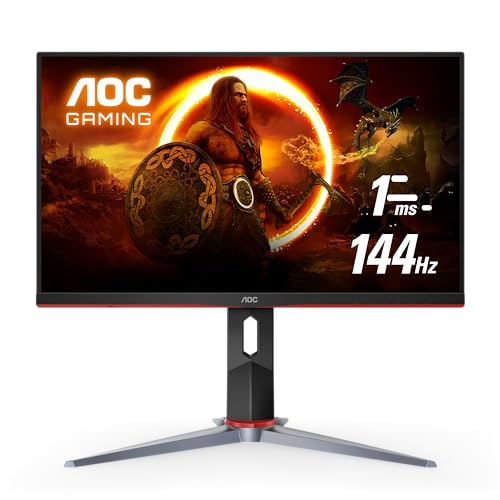
AOC 24G2
The 24G2 has been a default recommendation for entry level builds for years, pairing a 24 inch 1080p IPS panel with a 144Hz refresh rate and a genuinely adjustable stand. It is the right size for competitive shooters where you want the whole screen inside your field of view. Owners report that it pairs well with older graphics cards that cannot sustain 1440p frame rates.
Pros
- Very low demand on the graphics card
- Full height, pivot and swivel adjustment
- Wide viewing angles for an entry level panel
Cons
- 1080p looks soft on a 24 inch panel up close
- Modest peak brightness
Side by side
| # | Model | Panel | Best for | Score | Price |
|---|---|---|---|---|---|
| 1 | LG UltraGear 27GP850-B | 27 inch Nano IPS | Best overall | 9.4 | Check price |
| 2 | Alienware AW3423DWF | 34 inch curved QD-OLED | Best for immersive single player | 9.2 | Check price |
| 3 | Samsung Odyssey G7 LC32G75TQSNXZA | 32 inch curved VA | Best high refresh VA | 9.0 | Check price |
| 4 | Gigabyte M27Q | 27 inch SS IPS | Best value | 8.8 | Check price |
| 5 | ASUS TUF Gaming VG27AQ | 27 inch IPS | Best for motion clarity | 8.6 | Check price |
| 6 | Acer Nitro XV272U | 27 inch IPS | Best for mixed work and play | 8.3 | Check price |
| 7 | AOC 24G2 | 24 inch IPS | Best budget | 8.0 | Check price |
Before you buy
Match the resolution to your graphics card, not your ambition The most common regret owners report is buying a 1440p or ultrawide panel that their graphics card cannot feed. A rough rule works well here: entry level cards are happiest at 1080p, mid range cards handle 1440p at high refresh rates, and only the top tier comfortably drives 3440 x 1440 above 120 frames per second in demanding titles. Check the frame rates you currently get in the games you play most, then buy a panel whose refresh rate sits slightly above that number so you have headroom.
Panel type decides what the picture actually looks like IPS gives you accurate colour and wide viewing angles but washes out blacks in a dark room. VA delivers much deeper contrast at the cost of some smearing in dark, fast moving scenes. OLED and QD-OLED give per pixel lighting and near instant response, which is why they dominate the top of any picture quality ranking, though they carry burn in caution for static desktop elements. There is no universally correct answer, so pick the trade off that matches the room you play in.
Response time figures need translating Manufacturers quote grey to grey response times measured with the most aggressive overdrive setting, which usually introduces visible inverse ghosting. Owners consistently report that the middle overdrive setting looks cleaner than the fastest one. Treat a quoted one millisecond figure as a marketing ceiling rather than a description of normal use, and give more weight to independent motion measurements and to owner comments about smearing at your intended refresh rate.
Do not overlook the stand and the ports A monitor you cannot raise to eye level will cost you neck comfort every evening. Check for height adjustment specifically, since tilt only stands are common at lower prices and VESA mounting then becomes a second purchase. On connectivity, confirm you have DisplayPort 1.4 or HDMI 2.1 if you want the full refresh rate at your chosen resolution, and consider USB-C input if you also dock a laptop at the same desk.
Questions worth asking
Is 1440p worth it over 1080p for gaming?
For most players on a 27 inch screen, yes. Pixel density at 1080p on a 27 inch panel is low enough that text and distant detail look soft. The catch is that 1440p roughly increases the rendering load by around 75 percent, so confirm your graphics card can sustain your target frame rate before upgrading.
How much refresh rate do I actually need?
Going from 60Hz to 144Hz is the single most noticeable jump and suits almost everyone. Beyond that, 240Hz and higher mainly benefit competitive shooter players whose systems can genuinely sustain those frame rates. If your card renders 100 frames per second, a 165Hz panel already covers you comfortably.
Does G-Sync Compatible work as well as native G-Sync?
For most owners the difference is not visible. G-Sync Compatible certification means Nvidia has validated a FreeSync panel for tear free variable refresh. Native G-Sync modules add a wider variable refresh range and variable overdrive, which matters most if you often drop below 48 frames per second.
Should I worry about OLED burn in on a gaming monitor?
It is a real consideration rather than a reason to avoid OLED outright. Static taskbars, game HUDs and desktop icons are the risk. Current panels include pixel shifting and panel refresh routines, and several manufacturers now include burn in coverage in their warranty, which tells you how confident they are.
Is an ultrawide monitor good for competitive games?
Not especially. Many competitive titles either letterbox 21:9 or give a wider field of view that makes enemies smaller on screen, and some anti cheat systems restrict aspect ratio changes. Ultrawide shines in racing, flight, strategy and story driven games where immersion matters more than reaction time.
Do I need HDMI 2.1 for a gaming monitor?
Only if you plan to connect a current generation games console and want 4K at 120Hz. For PC use, DisplayPort 1.4 handles 1440p at 165Hz and above without difficulty, so HDMI 2.1 is a console feature more than a PC requirement on the panels here.
What size monitor should I buy for a normal desk?
At typical desk viewing distance, 27 inches suits 1440p and 24 inches suits 1080p. A 32 inch panel works well at 1440p if you sit further back or want a more cinematic feel, but it can feel overwhelming on a shallow desk where you sit close to the screen.
Is the built in HDR on these monitors useful?
Mostly not. Entry and mid range gaming monitors carry basic HDR certification without the local dimming zones or peak brightness needed for real highlight impact, so the effect is often flatter than standard mode. The QD-OLED option here is the exception, since per pixel lighting delivers genuine HDR contrast.
Final word
The LG UltraGear 27GP850-B remains the most sensible choice for the widest range of setups, balancing 1440p sharpness, a 165Hz refresh rate and a genuinely adjustable stand. Choose the Alienware AW3423DWF if contrast and immersion matter more than competitive edge, and the AOC 24G2 if you are pairing a modest graphics card with a fast, no fuss 1080p panel.


